Overview
This document is giving you an overview of the DataLbry's Jira Cloud Connector for version 0.1.0-alpha.1643636787.
What is Jira Cloud ?#
Jira Cloud is software to manage software development better by planning and tracking.
Obtaining Credentials#
The following credentials are required to use the Jira Cloud Connector:
- Jira Cloud URL
- Jira Cloud username
- Jira Cloud personal access token (secret)
Typically, the URL of a Jira Cloud instance looks like this: https://<your-organization>.atlassian.net.
The username is simply your email address which you use to log into your Jira Cloud instance.
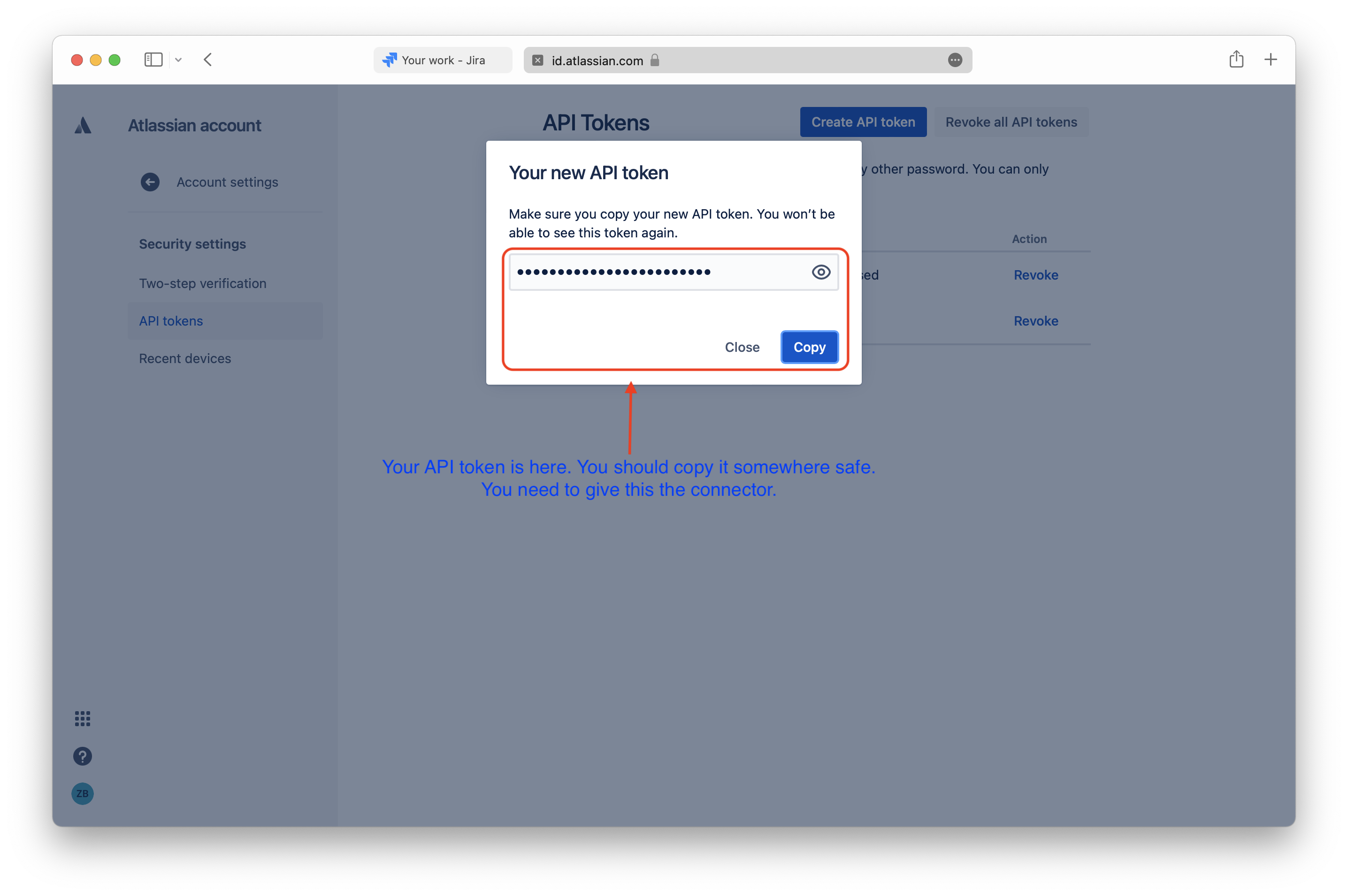
Lastly you will need a personal access token. To obtain such a token you can simply follow Atlassians offical documentation on how to do so
We have captured the next steps in form of images for you too.
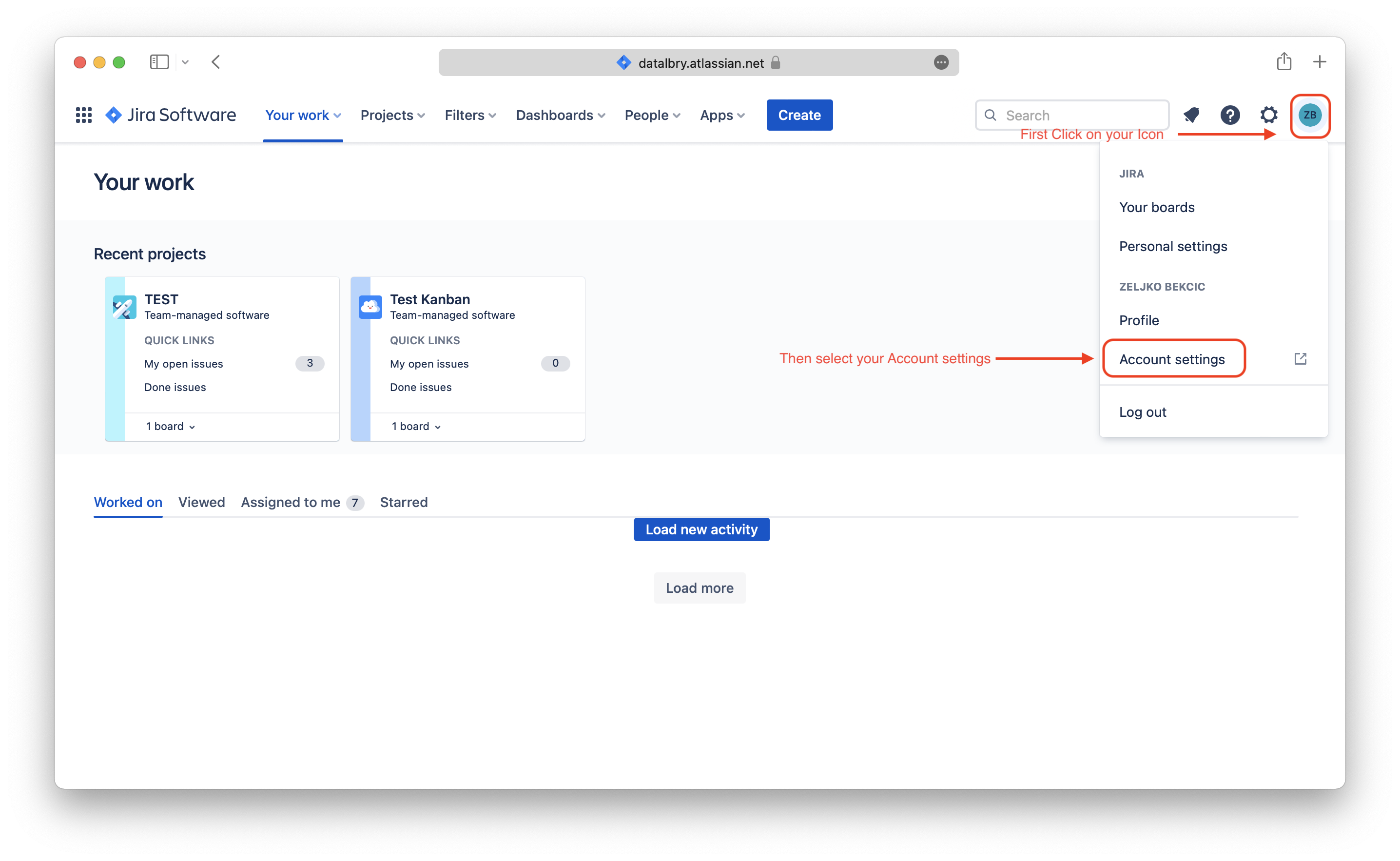
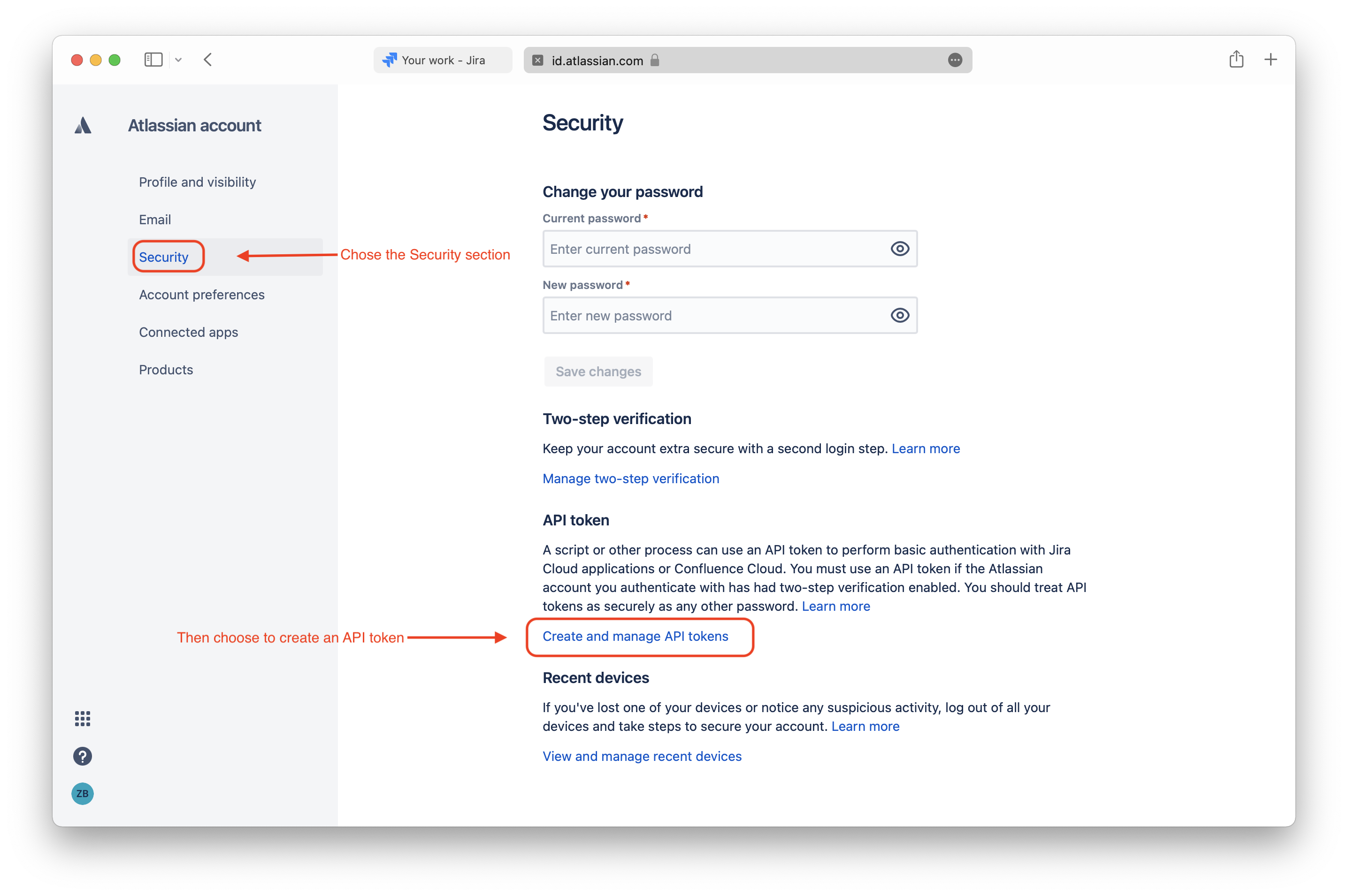
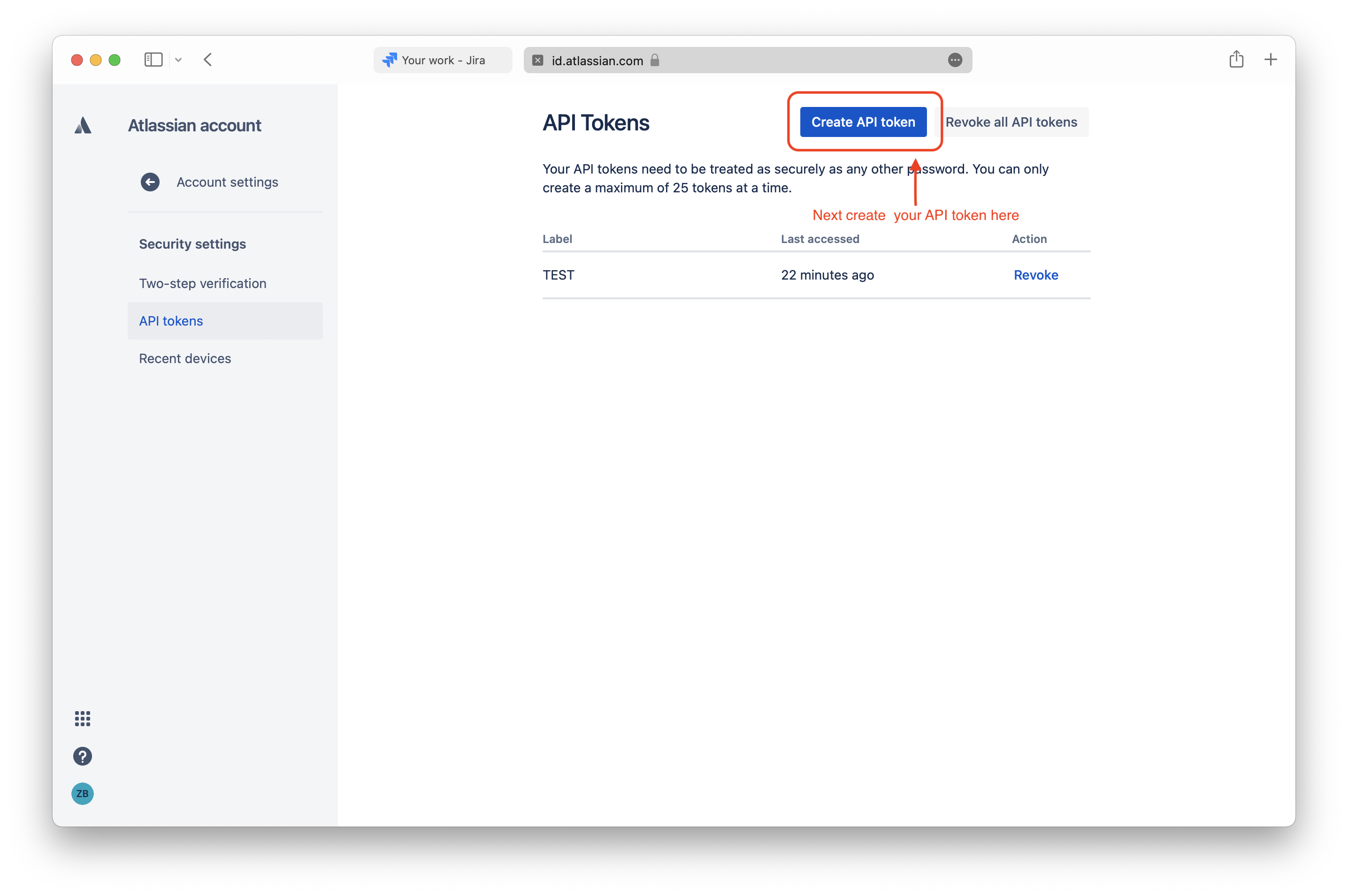
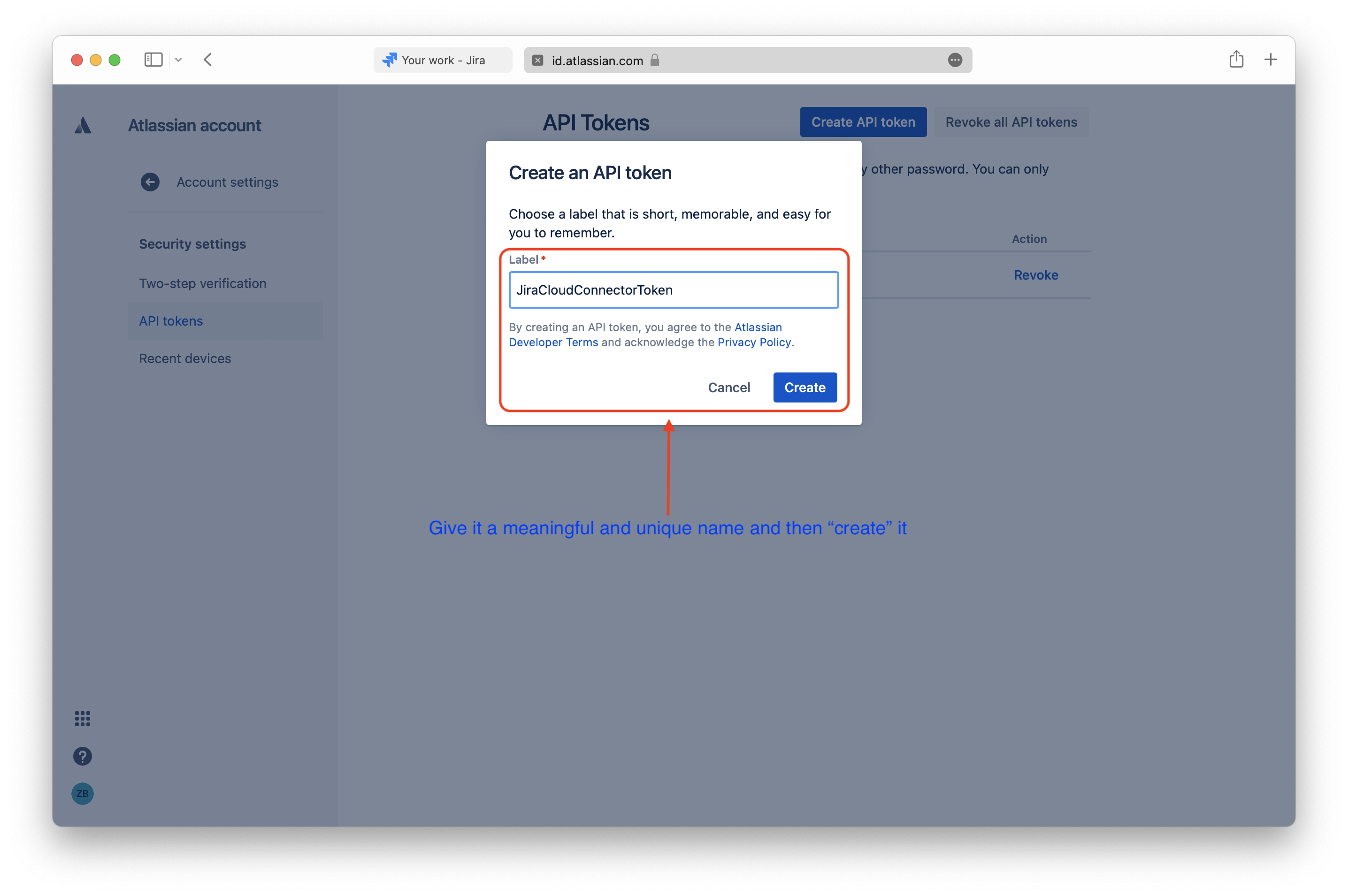
Targeted Documents#
The following documents are provided by the connector with detailed information:
- Board
- Board configurations
- Issues in a board
- Projects
- Quickfilters of a board
- Reports of a board
- Versions/Releases
Additional Options#
Project Filter#
There is an Allow Filter and Deny Filter for projects. The Allow Filter lets only pass project boards which you configured and accordingly the Deny Filter does not let the project boards pass which you configured.
To use these filters you have to provide the Project key. In the following picture you see some projects in our
Jira Cloud instance. The Project keys - surrounded by the red box - in this example are TEST and TESTKANBAN.
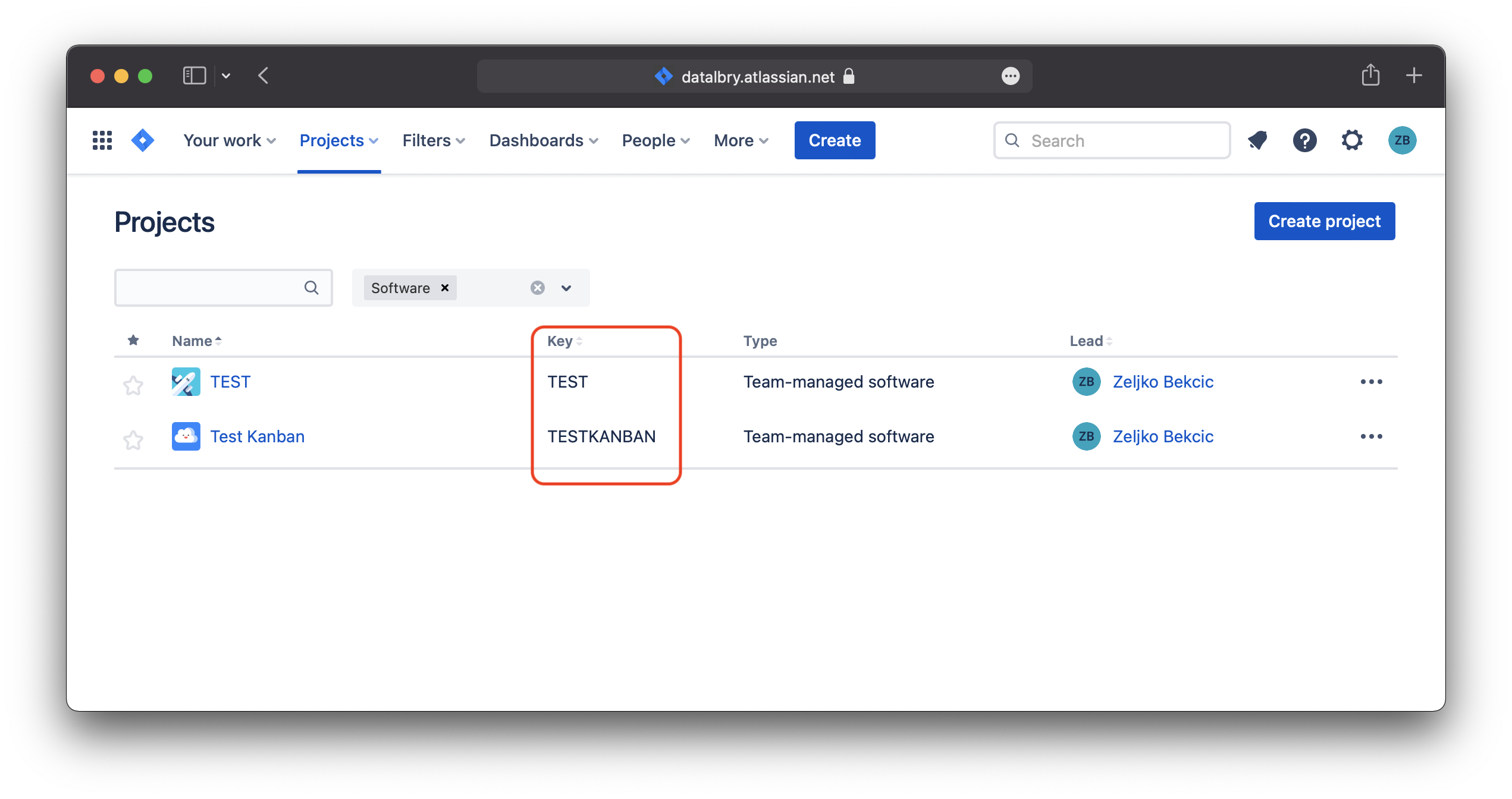
If you provide this Project key in the Allow Filter then this project board will be in the final document set. If it is set in the Deny Filter on the other hand it will be filtered out and therefore not be present in the final document set. If the Project key is in both filters it will always be filtered out. This goes for all documents derived by the project board too.